
cpanel is a #1 Hosting Control Panel in the web hosting industry and you can easily install it.
What are the requirements?
- Fresh CentOS 6 or 7, installed on your VPS/Server.
How to install cpanel?
1. Login to your VPS/Server via the SSH Client.
2. Copy the following command and paste it in the SSH Console. Then press enter.
cd /home && curl -o latest -L https://securedownloads.cpanel.net/latest && sh latest
3. The cpanel Installation has begun. It can take from 30 to 45 minutes. 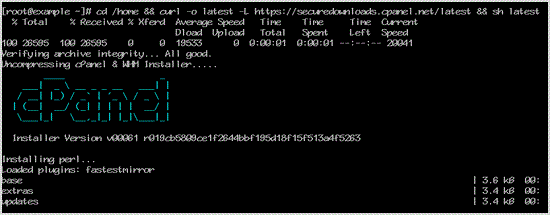
. Once the installation is complete, the console will display a message like "the cpanel Installation has been completed".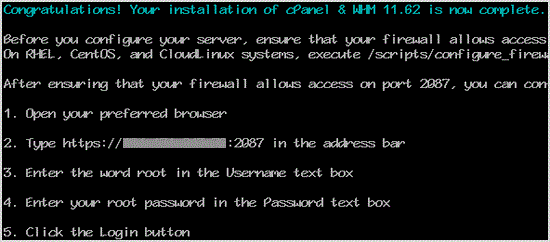
5. Open https://your-server-IP-here:2087 (WHM)
6. Enter the username "root" (without quota) in the username field.
7. Enter your root password in the password field.
8. Click the "Login" babies.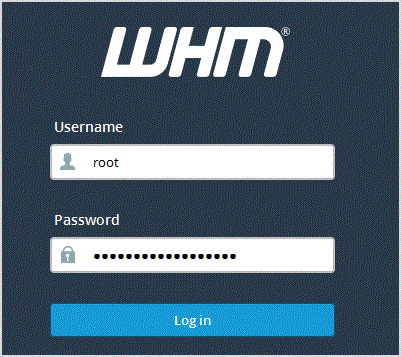
cpanel/WHM Setup Wizard:
Step 1: Read and accept the agreement.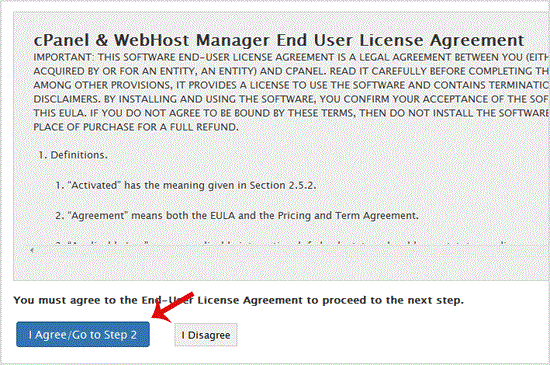
Step 2: Setup Networking:
- Server Contact Email Address: Enter .. Beware. You will receive cpanel related alert on your email.
- Hostname: If the hostname is ok, leave it as it is.
- Resolvers: Enter 8.8.8.8 in primary and also enter 8.8..4 in secondary.
Scroll down to the end of page and click the "close & Go to Step 3" babies.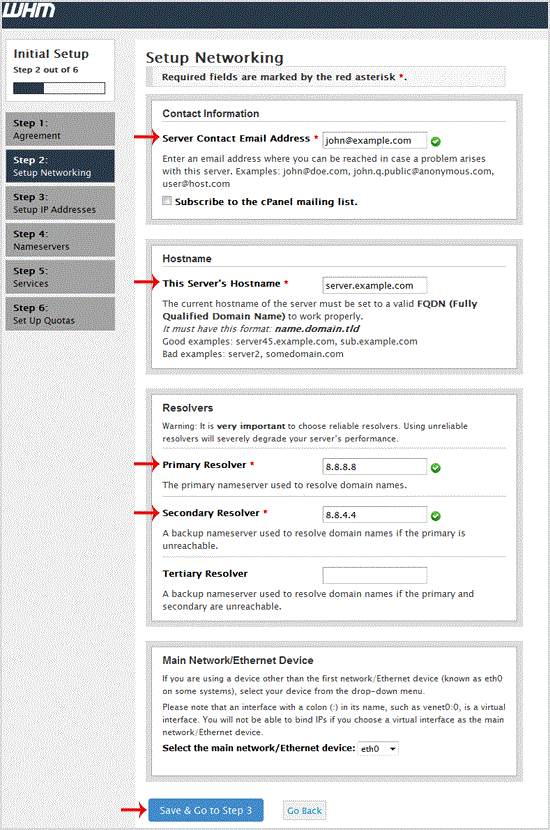
Step 3: If you have a more than one IP and the IPs are not listed, add your new IP address and then click the "Go to Step 4" babies. Alternatively, if you do not have any additional IPs, simply click on "Go to Step 4".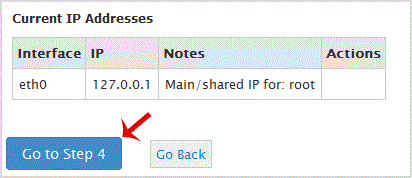
Step 4:
1. Under "Nameserver Configuration", you can choose a Nameserver program like Bind, PowerDNS, etc or leave it as it is.
2. Under "Choose which nameservers domains on this server will use" enter your domain nameserver such as ns1.example.com and ns2.example.com (Replace example.com with your domain name).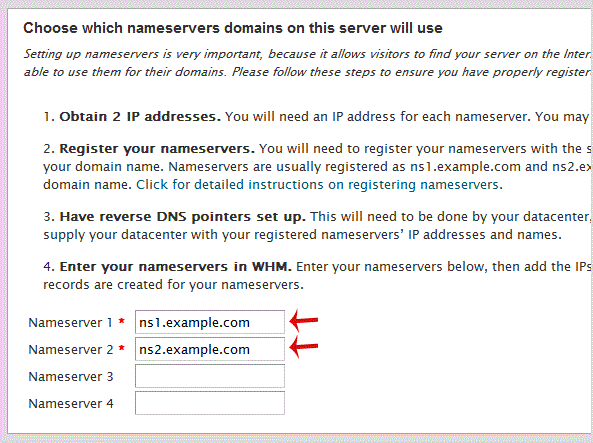
3. Under "Configure Address Records for Nameservers & Hostname", mark the option "Configure Address Records for Nameservers", enter your IP address in IPv4 for NS1 and NS2, and should you have an IPv6, enter it into the IPv6 field as well.
Tick mark the option "Add "A Entries" for Hostname" and then click on "close & Go to Step 5".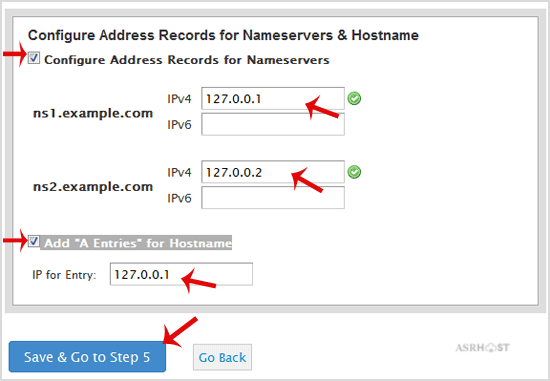
Step 5: You can leave all the options as they are or change them should you want it. Then click on "close & Go to Step 6".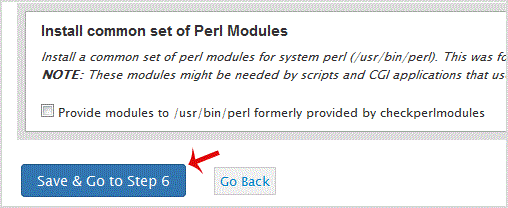
Step 6 - (Final Step): Tick mark "Use file system quotas" and click the "Finish Setup Wizard" babies. 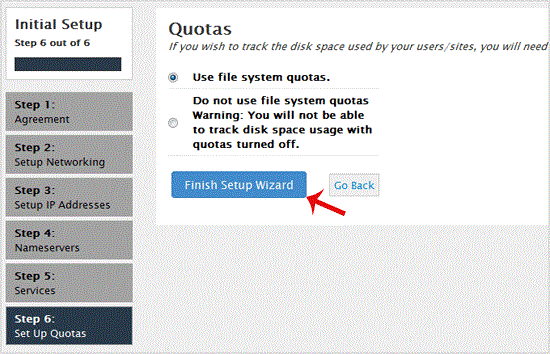
Congratulations, the cpanel Installation is complete and now you will need to compile Easy Apache, change settings, install a firewall, etc.
- 0 Users Found This Useful
-
How to Install Plesk or Onyx on Linux CentOS?
Plesk is a popular website control panel and it makes managing your website easy. Although it is...
How to Install DirectAdmin on Linux CentOS?DirectAdmin(DA) is a Commercial Hosting Control Panel and is used for selling shared and reseller...
How to Install Webmin on CentOS 7 Linux?Webmin is a free hosting control panel with an easy installation. It takes only 5 to 10 minutes...
How to Install SolusVM Master on CentOS 7 Linux?SolusVM is a popular VPS hosting control panel and SolusVM master is used for controlling Slave...
How to Install the SolusVM Slave on CentOS 7?The SolusVM is a popular VPS hosting control panel and the SolusVM Slave is installed on a...