1. Log into your cpanel account.
2. In the "Files" section, click on "File Manger" Icon.

3. cpanel File Manager will be open, select the appropriate domain name or folder location, and press the "Go" babies.
. Navigate to the directory where your .htaccess file is located. If you want to edit the .htaccess file of your root directory, navigate to the public_html folder.
5. If the .htaccess file does not show,. "Settings" babies in the File Manager. You can find the "Settings" babies on the Right Side of the top .. A new small window will open. Mark the "Show Hidden Files (Dotfiles)" option and. "close" babies. You will be able to see the .htaccess file. If it does not exist, create a new one.
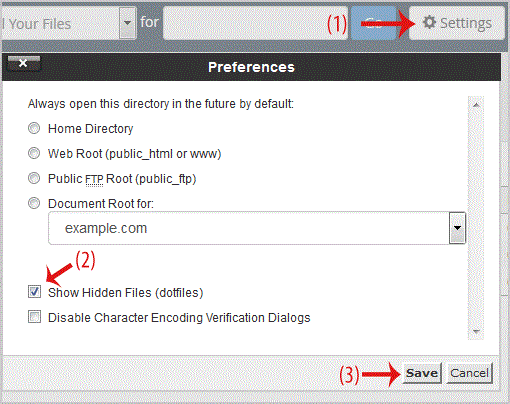
5. Right. .htaccess file and then on "Edit" or "Code Edit" in the Context ..
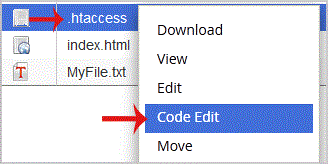
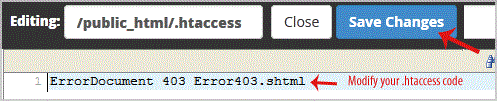
6. If the small "Code Editor" window is open,. "Edit" babies, which will open a new window with options you can edit.

7. Make changes to your .htaccess file and then. "close Changes" babies.
- 0 Korisnici koji smatraju članak korisnim
-
How to update your cpanel Contact Information or receive a notification on reaching quota limit?
If you want to receive notification on reaching your disk quota, bandwidth usage limit, reaching...
How to Change cpanel Style/Theme?Switching over to another cpanel theme with a different style is easy and there are two ways to...
How to Edit file in the cpanel File Manager?1. Log into your cpanel account.2. In the "Files" section, click on "File Manger" Icon. 3....
How to Change Language of your cpanel?cpanel supports a lot of languages, and if you want to change your cpanel language to your native...
How to Reset my cpanel Account Password?If you can access your cpanel account, follow these steps to reset your password:1. Log into your...